If you ever wanted to connect your Linux PC (using hypr.land) to a KVM switch you might have bumped into an issue with configuring resolutions. Let’s see how to solve these issues.
The Problem
I have just bought a mini pc to use as my dev box, and when I wanted to plug it in my KVM switch I realized that it only has a HDMI port. “No problem” I said to myself and grabbed a HDMI -> Display Port (DP for short) adapter. It didn’t work.
As it turns out it is easy to convert DP to HDMI, but for the reverse direction you need an “active” adapter. It looks like this:
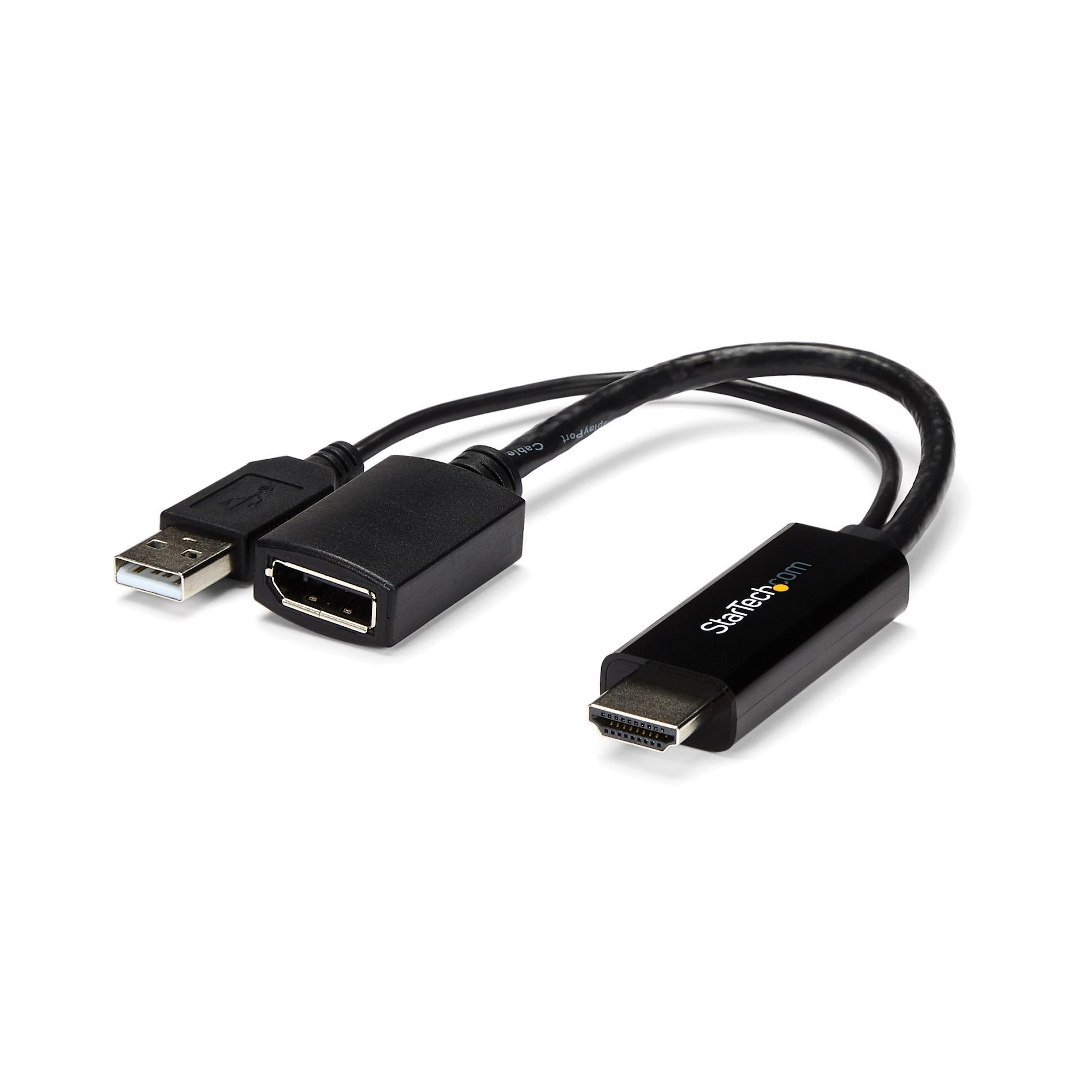
After it arrived I plugged it in and … nothing happened. I fiddled around a bit with it until I realized that if I configure hypr.land to use the preferred resolution it works, but with 640x480 resolution.
As it turns out my KVM switch wasn’t transmitting EDID (Extended Display Identification Data). Luckily it is very easy to obtain this information, but in order to do so you need to connect your monitor in some other way. I connected mine directly, then ran this command:
cvt 3440 1440 60
📘 cvt is a tool to calculate VESA CVT mode lines
A mode line specifies the exact timing parameters needed to drive a display at a particular resolution and refresh rate (see the example below) The CVT standard was developed by VESA to provide a consistent algorithm for calculating mode timings for any resolution/refresh rate combination, reducing the need for manufacturers to define custom timings for every possible mode. It replaced the older GTF (Generalized Timing Formula) standard.
For me the output was this:
# 3440x1440 59.94 Hz (CVT) hsync: 89.48 kHz; pclk: 419.50 MHz
Modeline "3440x1440_60.00" 319.75 3440 3488 3520 3600 1440 1443 1453 1481 -hsync +vsync
This can easily be converted to a hypr.land configuration that you can put into your monitor.conf file:
monitor = HDMI-A-1, modeline 319.75 3440 3488 3520 3600 1440 1443 1453 1481 +hsync -vsync, auto, 1.333333
📘 In order to figure out what monitors and ports you have on your computer you can use
hyprctl monitorsto obtain this information
Now after I saved this info I was able to use my KVM switch.